> ## Documentation Index
> Fetch the complete documentation index at: https://docs.meetchase.ai/llms.txt
> Use this file to discover all available pages before exploring further.
# Set Up Mailboxes
> Learn how to create a look-alike domain, create AI SDR mailboxes and connect to ChaseLabs
By sending emails from lookalike domains, you protect your main domain's sending reputation and mitigate risks to your company's regular operational email deliverability.
If you run into issues whilst connecting please reach out to [elizabeth@meetchase.ai](mailto:elizabeth@meetchase.ai).
Important Note: The only way we can guarantee complete protection to your primary domain is by using a look-alike domain. With that being said, unlike other platforms we focus on quality over quantity, building strong reputation, using high quality creative, and gold standard contact data. It is ultimately up to you whether you would like to use a secondary/look-alike domain or your core domain. Depending on your choice, please either go to step 1 or jump to 3.
Use your domain provider to set up a new domain. Popular providers include [Amazon Web Services (AWS)](https://docs.aws.amazon.com/codeartifact/latest/ug/domain-create.html), [GoDaddy](https://www.godaddy.com/help/domains-1000003), and [Namecheap](https://www.namecheap.com/support/knowledgebase/category/34/domains/). A look-alike domain closely resembles your main domain but is distinct enough that automated systems do not recognize it as identical. For instance, if your primary domain is acmecorp.com you might create a cousin domain like heyacme.com or meetacme.com.
We highly recommend using a .com or other high reputation top level domain.
After setting up the domain, add the domain to your organisation workspace.
Follow this [guide](https://knowledge.workspace.google.com/kb/how-to-add-a-secondary-domain-to-your-organization-000006216) to setup the domain in Google Workspace.
Follow this [guide](https://learn.microsoft.com/en-us/microsoft-365/admin/setup/add-domain?view=o365-worldwide) to setup the domain in Microsoft 365.
Configure the necessary DNS settings with your domain provider/mailbox provider to complete the setup process.
1. Add [SPF Record](https://support.google.com/a/answer/33786?product_name=UnuFlow\&visit_id=638786777375930107-1454187036\&rd=1\&src=supportwidget0#spf-add-record)
| Record Type | Host | Value |
| ----------- | ---- | ------------------------------------- |
| TXT | @ | v=spf1 include:\_spf.google.com \~all |
2. Setup DKIM by following this [guide](https://support.google.com/a/answer/180504#dkim-turn-on-verify).
3. Setup DMARC by following this [guide](https://support.google.com/a/answer/2466580).
4. Add the following CNAME Record
| Record Type | Host | Value |
| ----------- | ---- | ----------- |
| CNAME | data | chselbs.com |
5. Add an A or CNAME record that points to your main company website.
1. Add an [SPF Record](https://learn.microsoft.com/en-us/defender-office-365/email-authentication-spf-configure) to your DNS settings.
2. Setup DKIM by following this [guide](https://learn.microsoft.com/en-us/defender-office-365/email-authentication-dkim-configure).
3. Setup DMARC by following this [guide](https://learn.microsoft.com/en-us/defender-office-365/email-authentication-dmarc-configure).
4. Add the following CNAME Record
| Record Type | Host | Value |
| ----------- | ---- | ----------- |
| CNAME | data | chselbs.com |
5. Add an A or CNAME record that points to your main company website.
You can name these whatever you like! We highly recommend using a human sounding name and not your own. Perhaps swap the first and last names of your closest friends!
Follow this [guide](https://knowledge.workspace.google.com/kb/how-to-create-a-new-user-000007668) to create a new user in Google Workspace. Make sure to use the new domain you setup for their email.
Follow this [guide](https://learn.microsoft.com/en-us/microsoft-365/admin/add-users/add-users?view=o365-worldwide) to create a new user in Microsoft 365. Make sure to use the new domain you setup for their email.
1. Authenticate the new accounts by clicking "Add New SDR" under your [Organisation Settings](https://app.meetchase.ai/app/organisation-settings).
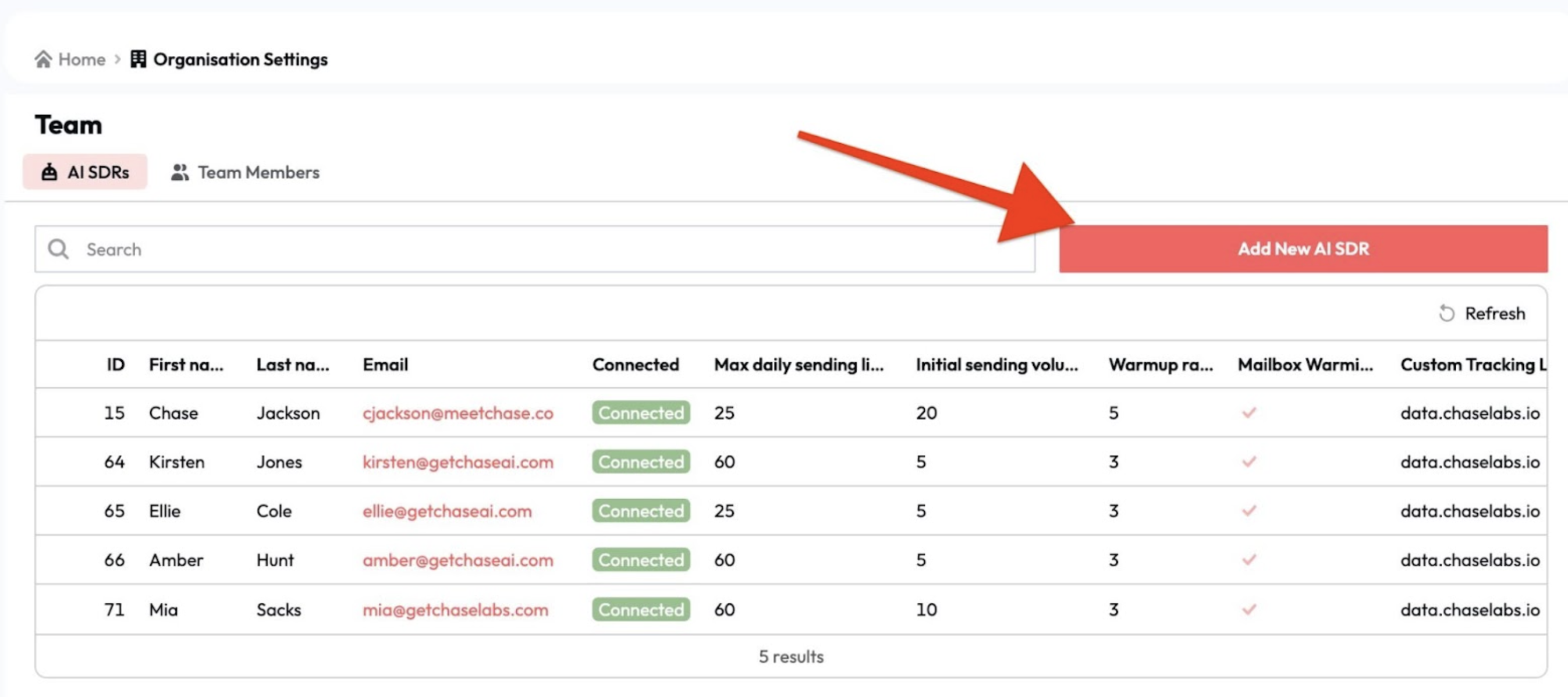 2. Alternatively you can share the email/passwords with [elizabeth@meetchase.ai](mailto:elizabeth@meetchase.ai) who will connect your accounts.
Once connected our systems will automatically run a mailbox health test to ensure the accounts were setup correctly.
2. Alternatively you can share the email/passwords with [elizabeth@meetchase.ai](mailto:elizabeth@meetchase.ai) who will connect your accounts.
Once connected our systems will automatically run a mailbox health test to ensure the accounts were setup correctly.