

1
Register a New Domain
Use your domain provider to set up a new domain. Popular providers include Amazon Web Services (AWS), GoDaddy, and Namecheap. A look-alike domain closely resembles your main domain but is distinct enough that automated systems do not recognize it as identical. For instance, if your primary domain is acmecorp.com you might create a cousin domain like heyacme.com or meetacme.com.
We highly recommend using a .com or other high reputation top level domain.
2
Add the Secondary Domain to Google Workspace or Microsoft 365
After setting up the domain, add the domain to your organisation workspace.
- Google Workspace
- Microsoft 365
Follow this guide to setup the domain in Google Workspace.
3
Finalize the Setup
Configure the necessary DNS settings with your domain provider/mailbox provider to complete the setup process.
- Google Workspace
- Microsoft 365
- Add SPF Record
- Setup DKIM by following this guide.
- Setup DMARC by following this guide.
- Add the following CNAME Record
- Add an A or CNAME record that points to your main company website.
4
Create 2 Users via Google Workspace or Microsoft 365
You can name these whatever you like! We highly recommend using a human sounding name and not your own. Perhaps swap the first and last names of your closest friends!
- Google Workspace
- Microsoft 365
Follow this guide to create a new user in Google Workspace. Make sure to use the new domain you setup for their email.
5
Connect to ChaseLabs
- Authenticate the new accounts by clicking “Add New SDR” under your Organisation Settings.
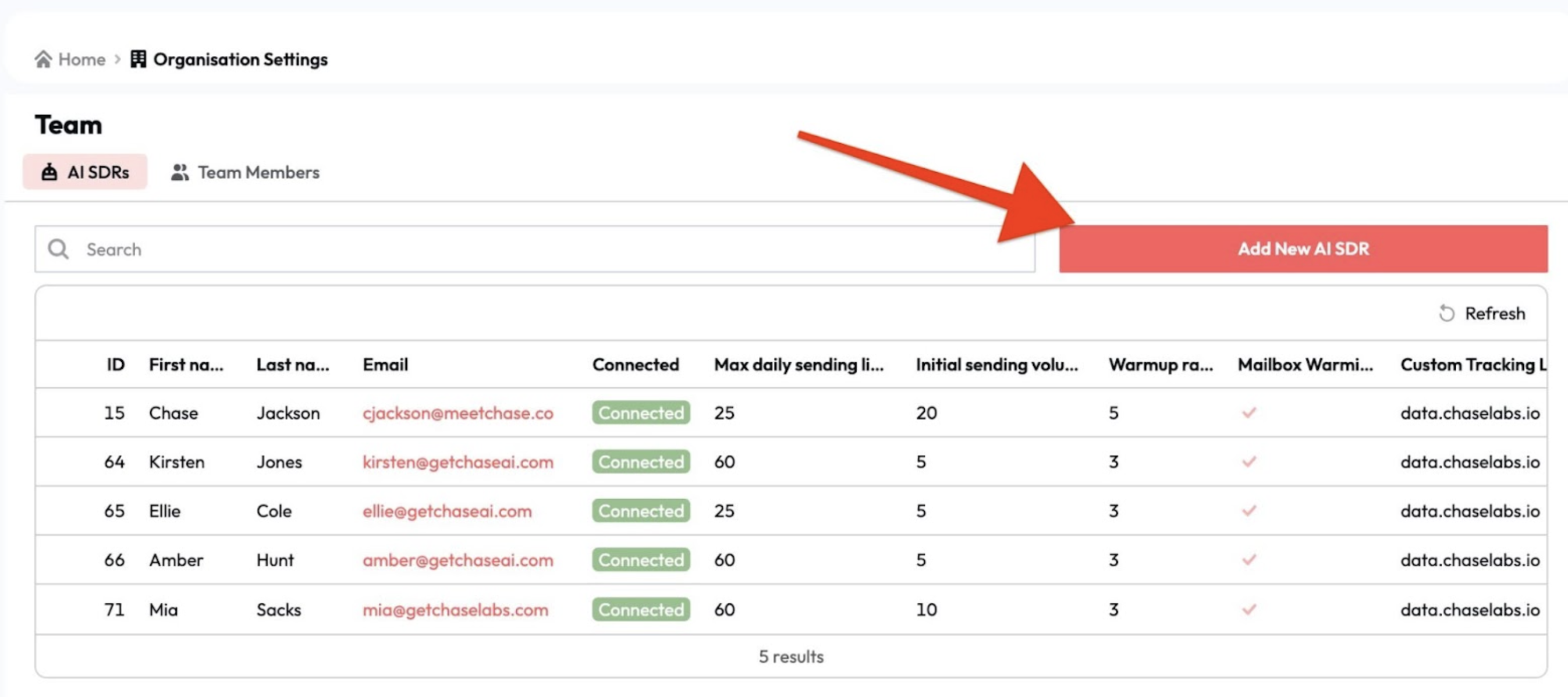
- Alternatively you can share the email/passwords with elizabeth@meetchase.ai who will connect your accounts.
Once connected our systems will automatically run a mailbox health test to ensure the accounts were setup correctly.